E-Rate Invoicing from ConnectWise: Splitting an Invoice Between the School and USAC
Overview
If you sell managed services to schools and libraries, you may already know the E-Rate invoice problem. A normal invoice has one total and one payer. An E-Rate invoice splits the same charges between two payers: the federal program (USAC) pays the discount percentage, and the school pays the rest.
ConnectWise PSA has no concept of that split. In this post I’ll go over what an E-Rate invoice has to show, how to store the E-Rate details in ConnectWise so the invoice can be generated automatically, and the math, including a sales tax handling variation. The example is a fictional MSP, Massive Dynamic, invoicing a fictional school district, Riverbend Unified School District.
What an E-Rate Invoice Has to Show
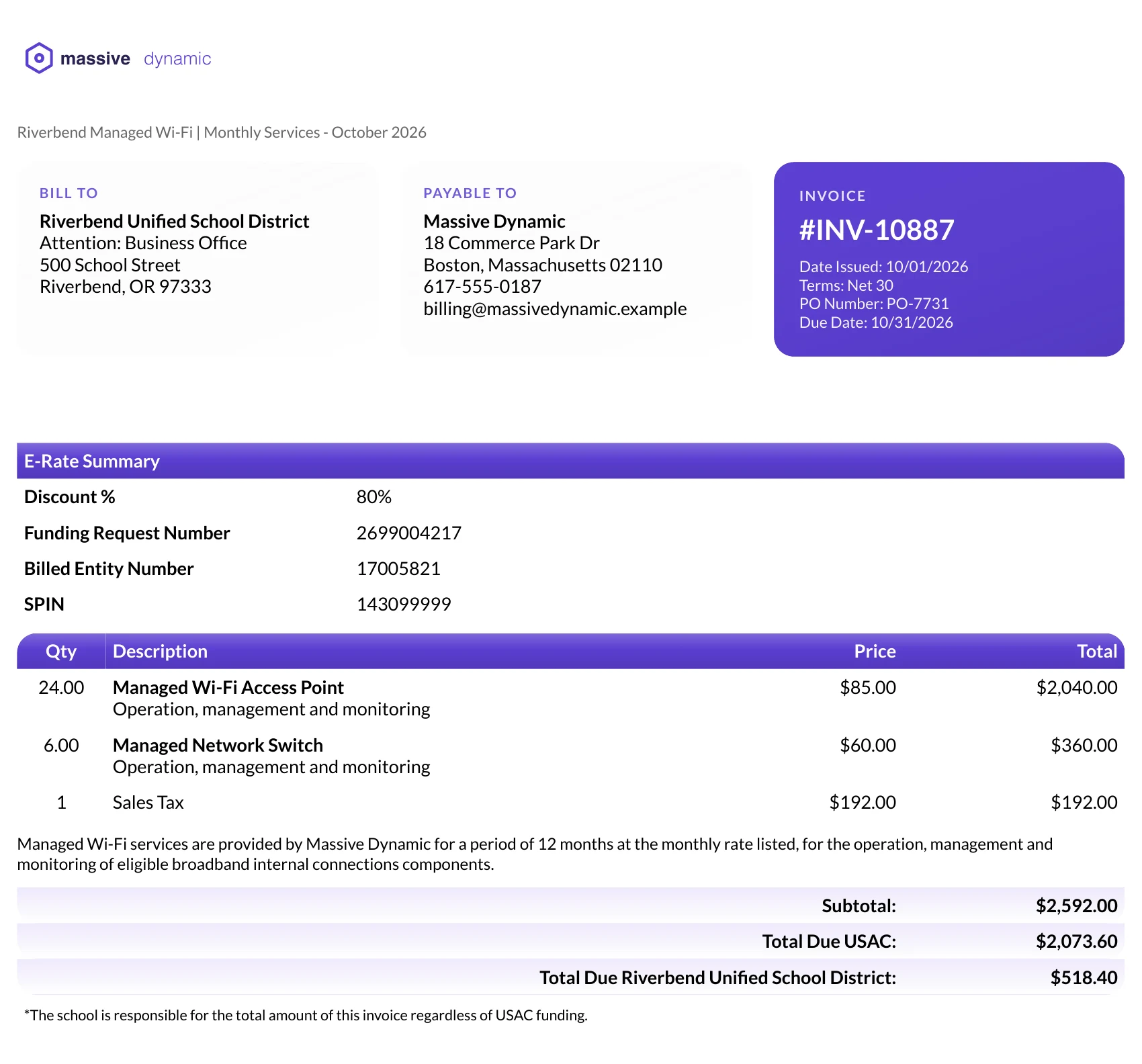
A regular invoice lists charges and a total. An E-Rate invoice also needs to identify the funding request it belongs to and show who owes what. In practice that means four pieces of information, and then the split:
- Discount percentage: the share of eligible charges the program covers for this customer, for example 80%.
- Funding request number: ties the invoice to the approved funding request the services were awarded under.
- Billed entity number: identifies the school or district that is the applicant.
- Service provider identification number (SPIN): identifies your company as the provider. It’s the same on every E-Rate invoice you send, so it can live in the template.
Below the line items, the invoice then shows a subtotal, the portion due from the program, and the portion due from the school. Many providers also add a short note that the school remains responsible for the full amount regardless of funding, which is what you’d expect to see on a document that can end up in front of a funding auditor.
Where to Keep the E-Rate Details in ConnectWise
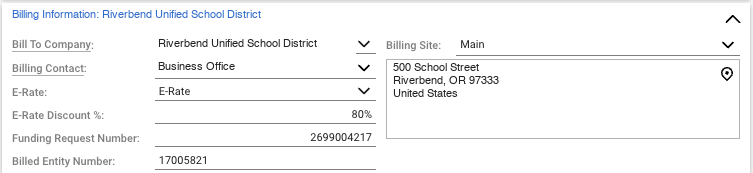
The discount percentage, funding request number and billed entity number change by customer and by funding year, so they belong on the thing that already represents that customer’s recurring service: the agreement. Create a custom field on the agreement for each of them so you can reference them in your template and use them in the calculations. We use E-Rate Discount % (type Percent), Funding Request Number (Number) and Billed Entity Number (Text), all entered by hand.
You’ll also want a way to tell the template that this particular agreement is an E-Rate agreement, so every other customer’s invoices look exactly as they do today. We use one more agreement custom field, named E-Rate. It’s a Text field with a List entry method and three values:
- None (the default): a normal invoice.
- E-Rate: the E-Rate layout, with sales tax included in the amount that gets split.
- E-Rate Tax Exception: the E-Rate layout, with sales tax kept out of the split. More on this below.
The Math
For a Riverbend invoice, say Massive Dynamic bills one line for managed Wi-Fi operation and monitoring at $2,400.00 for the month, the funding discount is 80%, and sales tax is $192.00.
Tax included in the split
The simple case: tax is added to the subtotal first, and the discount applies to the whole thing.
- Subtotal (services plus sales tax): $2,592.00
- Total due from USAC (80%): $2,073.60
- Total due from Riverbend (the remaining 20%): $518.40
Tax exception
Some customers need the sales tax kept out of the program’s share, so the tax is charged only to the school. Here the discount applies to the services only, and the tax gets its own line:
- Subtotal (services only): $2,400.00
- Total due from USAC (80%): $1,920.00
- Total due from Riverbend (the remaining 20%): $480.00
- Sales tax due from Riverbend: $192.00
Same invoice, same charges, but the school’s out-of-pocket changes from $518.40 to $672.00 in total.
You’ll want to round the program’s share to the cent first, then calculate the school’s share as the subtotal minus that figure. That way the two portions always add up exactly to the total.
The Calculation
If your invoice templates are able to use JSON-formatted data, as they are in our hosted templates, the whole split is a short function. It takes the subtotal, the sales tax, the discount percentage and the tax exception flag, and returns the numbers the template prints.
function erateSplit({ subtotal, salesTax, discountPct, taxException }) {
  const round = (n) => Math.round(n * 100) / 100;

  // Tax exception: the discount applies to services only.
  // Otherwise tax is part of the amount that gets split.
  const base = taxException ? subtotal : subtotal + salesTax;

  const usac = round(base * (discountPct / 100));   // program's share
  const school = round(base - usac);                // school's share, always sums back to base
  const schoolTax = taxException ? salesTax : 0;    // tax billed only to the school

  return { base, usac, school, schoolTax, schoolTotal: round(school + schoolTax) };
}

erateSplit({ subtotal: 2400, salesTax: 192, discountPct: 80, taxException: false });
// { base: 2592, usac: 2073.6, school: 518.4, schoolTax: 0, schoolTotal: 518.4 }

erateSplit({ subtotal: 2400, salesTax: 192, discountPct: 80, taxException: true });
// { base: 2400, usac: 1920, school: 480, schoolTax: 192, schoolTotal: 672 }
Those two results match the Riverbend numbers above. Format the values as currency only at the end, when the template prints them.
Making the Invoice Template Do the Work
On the template side, when the agreement’s E-Rate field is set to anything other than None, you can swap in the usual products table and billing summary for an E-Rate section:
- A summary block with the discount %, funding request number, billed entity number and SPIN.
- The line items from the agreement.
- A short statement describing the services provided and the term, if your funding paperwork needs one.
- The subtotal, total due from USAC, and total due from the school, with the tax exception line when it applies.
You can also update the title to “E-Rate Invoice” to make it easy for your billing team to spot the right ones in a stack.
Problems to Watch For
- Don’t mix E-Rate and regular lines on one agreement. If a school also buys a non-eligible service from you, bill it on a separate agreement so the discount only applies to what’s actually eligible.
- Test with a closed invoice and an open one. Both should render the same split.
If a school also gets other invoices from you, you may want to combine ConnectWise invoices, or use a billing portal to review and send them.
Want This for Your Invoices?
If you’d like it built for your ConnectWise instance, with your own design and tax rules, book a demo and we’ll show you what it looks like with your data.