Add a MICR / Lockbox Scan Line to ConnectWise Invoices
Overview
If your clients still mail checks, your bank’s lockbox service can deposit them for you. The catch is that the bank needs a line of machine-readable characters on the remittance stub so its scanners can match each payment to the right customer and invoice. Most people call this the “MICR line.” ConnectWise PSA doesn’t have a built-in way to print it on an invoice.
In this post I’ll go over what goes into the line, how the check digit works, and the code we use to build it. If you are building your own invoices in a tool that runs JavaScript, you should be able to drop this right in. If you have SQL access, you can use similar logic in a custom view and make it available in Report Writer by prefixing it with v_.
If you’d rather not build it yourself, a scan line is one of the options available on NexNow Hosted Invoices.
A quick note on the name: true MICR is the magnetic-ink E-13B font printed at the bottom of checks. What lockbox banks usually want on an invoice stub is an OCR scan line printed in the OCR-A font, which works with ordinary toner. Everyone calls it the MICR line anyway, so I do too. Just confirm with your bank which one they need.
Get the Spec From Your Bank First
Every lockbox bank has its own layout, so ask them for their scan line specification before writing any code. It will tell you:
- Which fields to include and in what order
- How long each field is, and how to pad it (usually with leading zeros)
- The check digit method
- Where on the stub the line has to print, and in what font and size
The layout below is one we’ve used in production. Treat it as an example to adapt, not a standard.
| Field | Length | Example | Notes |
|---|---|---|---|
| Prefix | 1 | A | Constant set by the bank |
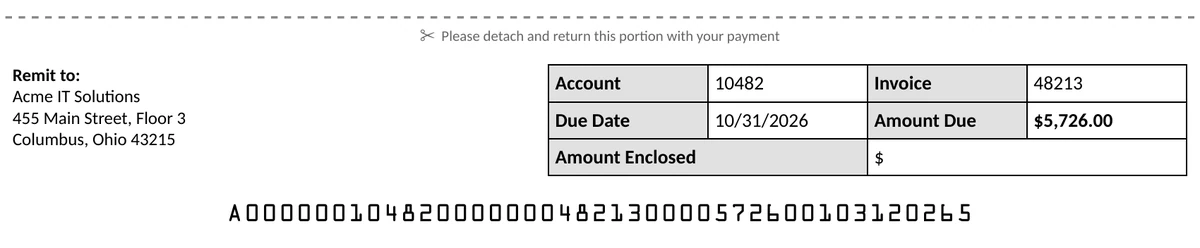
| Account number | 11 | 00000010482 | Company’s Account Number field in ConnectWise, zero-padded |
| Invoice number | 12 | 000000048213 | “C-” stripped from credit memos |
| Amount due (cents) | 10 | 0000572600 | $5,726.00; zero for credit memos |
| Due date | 8 | 10312026 | MMDDYYYY |
| Check digit | 1 | 5 | Mod 10, weights 7-3-1 |
Put together, it looks like this:
A000000104820000000482130000572600103120265
The Check Digit
The check digit lets the bank’s scanner catch a misread. Ours uses a common lockbox method: mod 10 with weights of 7, 3, 1 repeating from the right.
- Starting with the right-most character, multiply each digit by 7, then 3, then 1, then 7 again, and so on.
- Convert letters to digits first (A–I = 1–9, J–R = 1–9, S–Z = 2–9).
- Add up the results. The check digit is whatever brings the total up to the next multiple of 10.
Your bank may use a different method, such as Luhn/mod 10 with 2-1 weights or mod 11. If so, only the checkDigit function needs to change.
The Code
This is plain JavaScript, so it runs as-is in any automation tool or script that supports JavaScript:
// Build a lockbox scan line ("MICR line") for a ConnectWise invoice.
// Adjust field order/lengths to match YOUR bank's lockbox spec.
function buildScanLine(invoice) {
  const pad = (value, length) => String(value).padStart(length, '0').slice(-length);

  const accountNumber = String(invoice.accountNumber || '');
  const invoiceNumber = String(invoice.invoiceNumber || '').replace(/C-/g, '');
  if (accountNumber.length > 11) throw new Error(`Account # too long: ${accountNumber}`);
  if (invoiceNumber.length > 12) throw new Error(`Invoice # too long: ${invoiceNumber}`);

  // Amount due in cents -- Math.round, not Math.floor (19.99 * 100 = 1998.9999...)
  const isCredit = invoice.type === 'Credit Memo' || invoice.balance < 0;
  const cents = isCredit ? 0 : Math.round(invoice.balance * 100);

  // Due date as MMDDYYYY
  const [y, m, d] = invoice.dueDate
    ? new Date(invoice.dueDate).toISOString().slice(0, 10).split('-')
    : ['0000', '00', '00'];

  const core = 'A' + pad(accountNumber, 11) + pad(invoiceNumber, 12) + pad(cents, 10) + m + d + y;
  return core + checkDigit(core);
}

// Mod-10 check digit, weights 7-3-1 repeating from the right.
// Letters map to digits (A-I = 1-9, J-R = 1-9, S-Z = 2-9).
function checkDigit(line) {
  const codePoints = '0123456789_ABCDEFGHI_JKLMNOPQR__STUVWXYZ';
  const weights = [7, 3, 1];
  let sum = 0;
  for (let i = line.length - 1, w = 0; i >= 0; i--, w++) {
    const index = Math.max(codePoints.indexOf(line[i]), 0);
    sum += (index % 10) * weights[w % 3];
  }
  return String((10 - (sum % 10)) % 10);
}
A few things that tripped me up and are worth calling out:
- Use
Math.roundfor cents, neverMath.floor. Floating-point math means19.99 * 100comes out as1998.9999…. If you floor that, the scan line says $19.98 and the bank flags the payment as a short pay. - Fail loudly on over-long values. If an account or invoice number is too long to fit, it’s better for the invoice to error out than to quietly print a truncated number the bank will match to the wrong customer.
- Credit memos. We print zero for the amount due so nothing gets auto-applied, but check what your bank prefers.
- Due date time zones. CW returns dates in UTC. If your due dates are stored with a time component, make sure the date doesn’t shift by a day when you convert it.
Printing It
Once your invoice template has the value, printing it is just a matter of font and placement. We embed the OCR-A font in the template and put the line in its own row on the tear-off remittance stub:
<td style="font-family: 'OCR A Std'; font-size: 12pt; text-align: center;">
  {{micr}}
</td>
Your bank will usually send you a test process: print some sample stubs, mail or scan them, and they’ll confirm their equipment reads them. Don’t skip it. Print scaling in a PDF viewer is enough to cause read errors, so test with the same printer settings your team actually uses.
Wrapping Up
If you’re building invoices yourself, the code above should get you most of the way there. If you’d rather not, a scan line is one of the many options available on NexNow Hosted Invoices for ConnectWise PSA. We match it to your bank’s spec, test it against your real invoices, and it works with your current invoicing process in PSA and the payment portals you already use.
Contact us for one-on-one help, or connect with us on the ConnectWise subreddit or the ConnectWise University Forum.