Showing Telecom Taxes and Fees as Separate Sections on ConnectWise Invoices
Overview
If you resell VoIP or other telephony services through ConnectWise PSA, your customers’ bills include more than the service itself: a 911 or E911 fee, a Universal Service Fund (USF) surcharge, state and local telecom taxes, regulatory recovery fees. Customers expect to see those listed separately, the way they would on a phone company bill, and not mixed in with the services.
ConnectWise has no good place for them. Its tax handling is built for sales tax, calculated from a tax code, so telecom charges usually end up as ordinary products on the invoice. This post covers how to keep them as products in ConnectWise and still present them as a separate taxes and fees section, and when you’re better off not building that at all.
The Problem
- Telecom fees and taxes are not sales tax, and they don’t fit one tax code. You may have five or ten of them on one invoice, each with its own rate or flat amount.
- The simplest way to bill them in ConnectWise is as products or additions of the invoice: “E911 Fee”, “Federal USF”, and so on.
- On the default invoice they then sit in the middle of the service lines, get counted in the subtotal, and look like something you’re selling, not something you’re collecting.
Keep Them as Products
Resist the urge to force these into ConnectWise’s tax fields. As products they can be added to agreements, billed on tickets or projects, priced per line or per user, and they flow into your GL and reporting like any other charge. The work is in how you label them so an invoice template can tell them apart.
Two ways to do that, both on the product catalog item:
- Subcategory. Create subcategories such as “Usage” “Telecom Taxes” and “Telecom Fees” and put each catalog item in the right one. It needs no extra setup, it’s visible in the catalog list, and it’s easy to audit.
- A custom field. Add a product catalog custom field, for example “Invoice Section”, with values like “Taxes” and “Fees”. It’s more flexible, since one subcategory structure can serve your reporting while the field serves the invoice, but it’s one more thing to fill in correctly on every new item.
Either way, make sure these catalog items aren’t flagged taxable, or ConnectWise will add sales tax on top of a tax. Check the GL account on each one too, so the amounts you collect land where you track what you owe.
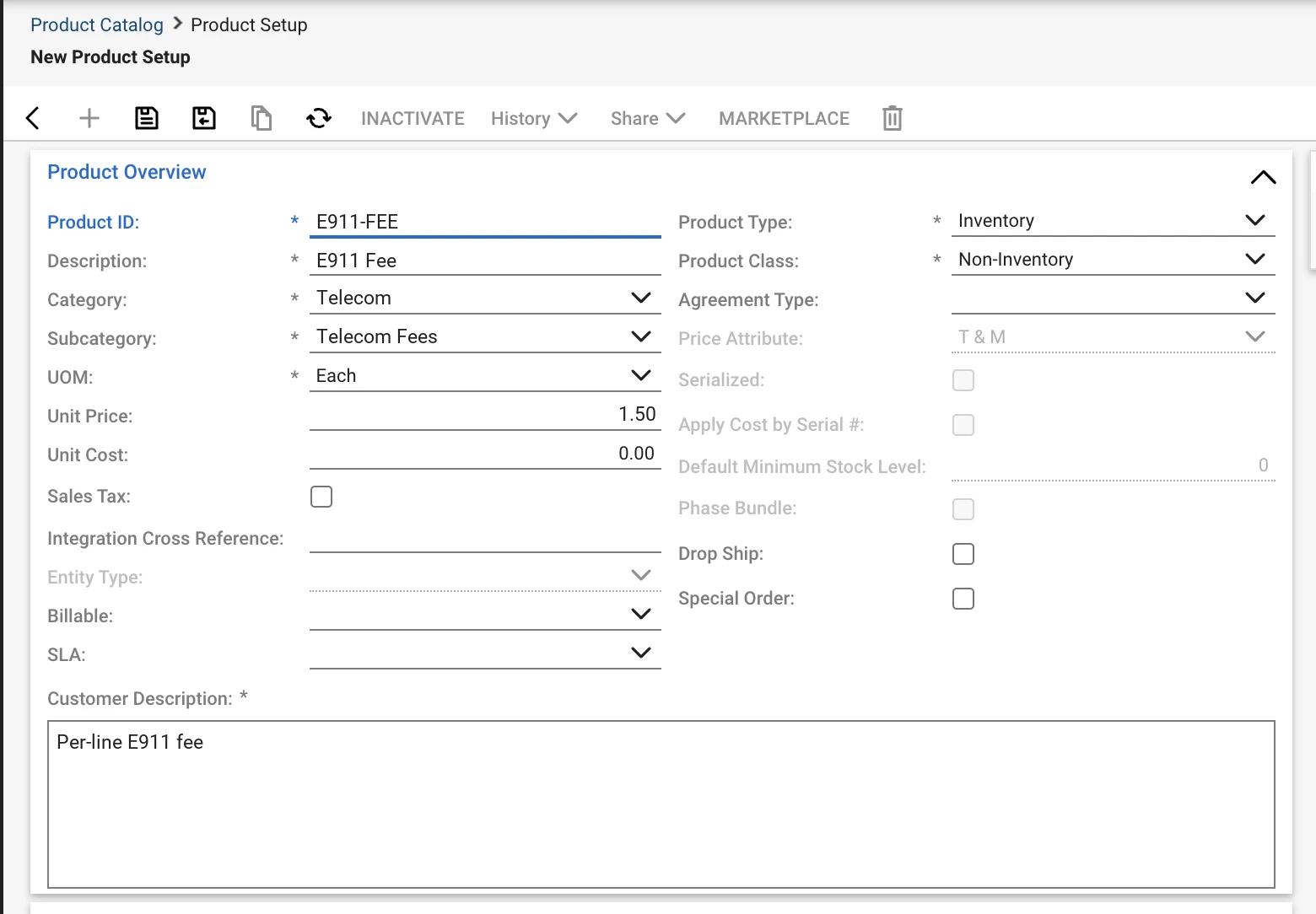
[SCREENSHOT: product catalog item with the Telecom Taxes subcategory selected, fake data]
Make Them Look Like Taxes
Once the products are labeled, the invoice template does the rest. It reads the subcategory (or the custom field) on each line and sorts the invoice into sections:
- Services in the main body, with their own subtotal.
- Telecom taxes in a section below it, each listed with its amount and a section total.
- Telecom fees, if you want those apart from the taxes.
- One invoice total at the bottom that matches what ConnectWise says the customer owes.
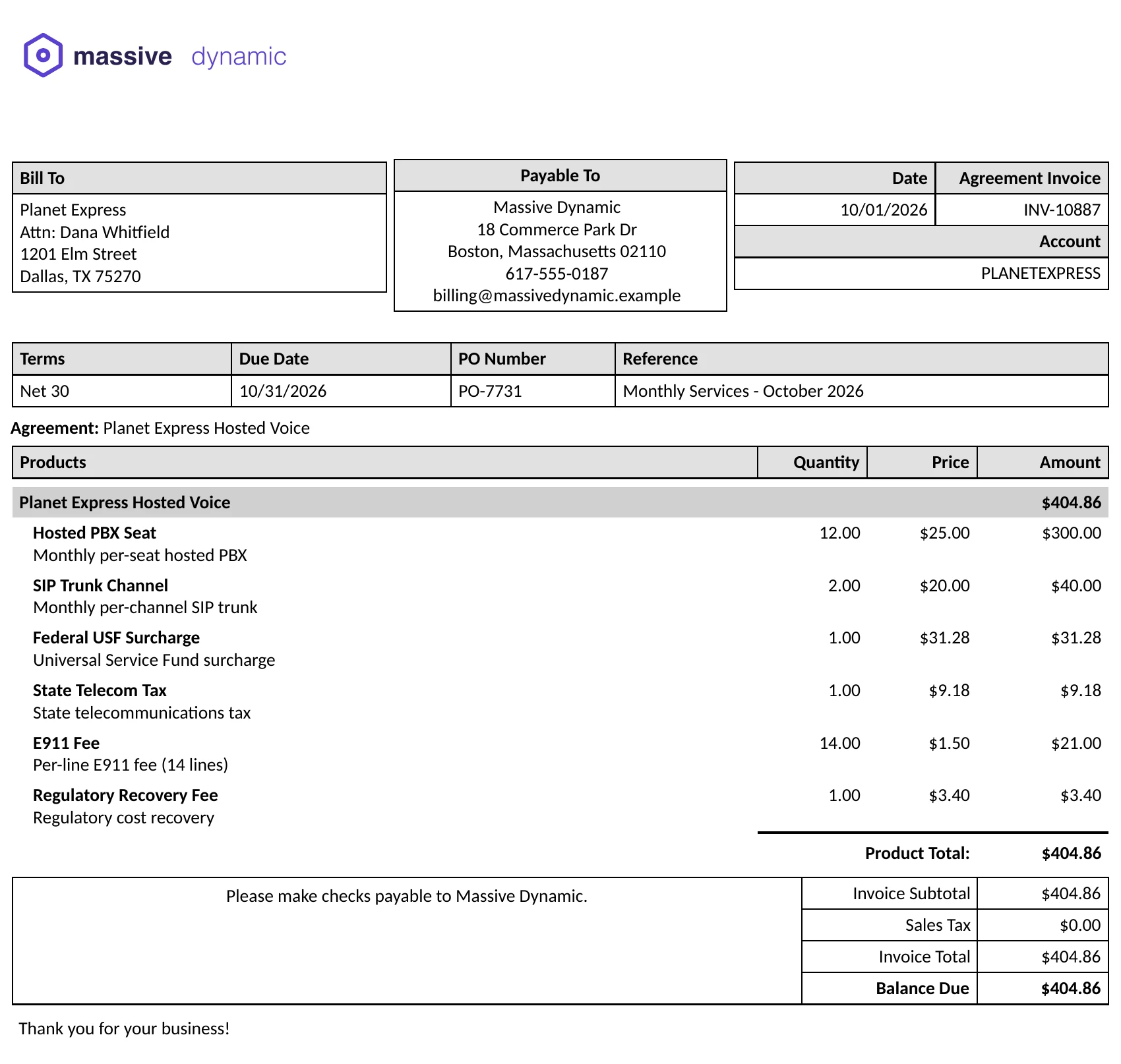
A small example, with made up numbers:
Services
  Hosted PBX seats (12)                       $300.00
  SIP trunk (2 channels)                       $40.00
  Services subtotal                           $340.00

Telecom taxes
  Federal USF surcharge                        $31.28
  State telecom tax                             $9.18
  Telecom taxes total                          $40.46

Telecom fees
  E911 fee (14 lines)                          $21.00
  Regulatory recovery fee                       $3.40
  Telecom fees total                           $24.40

Invoice total                                 $404.86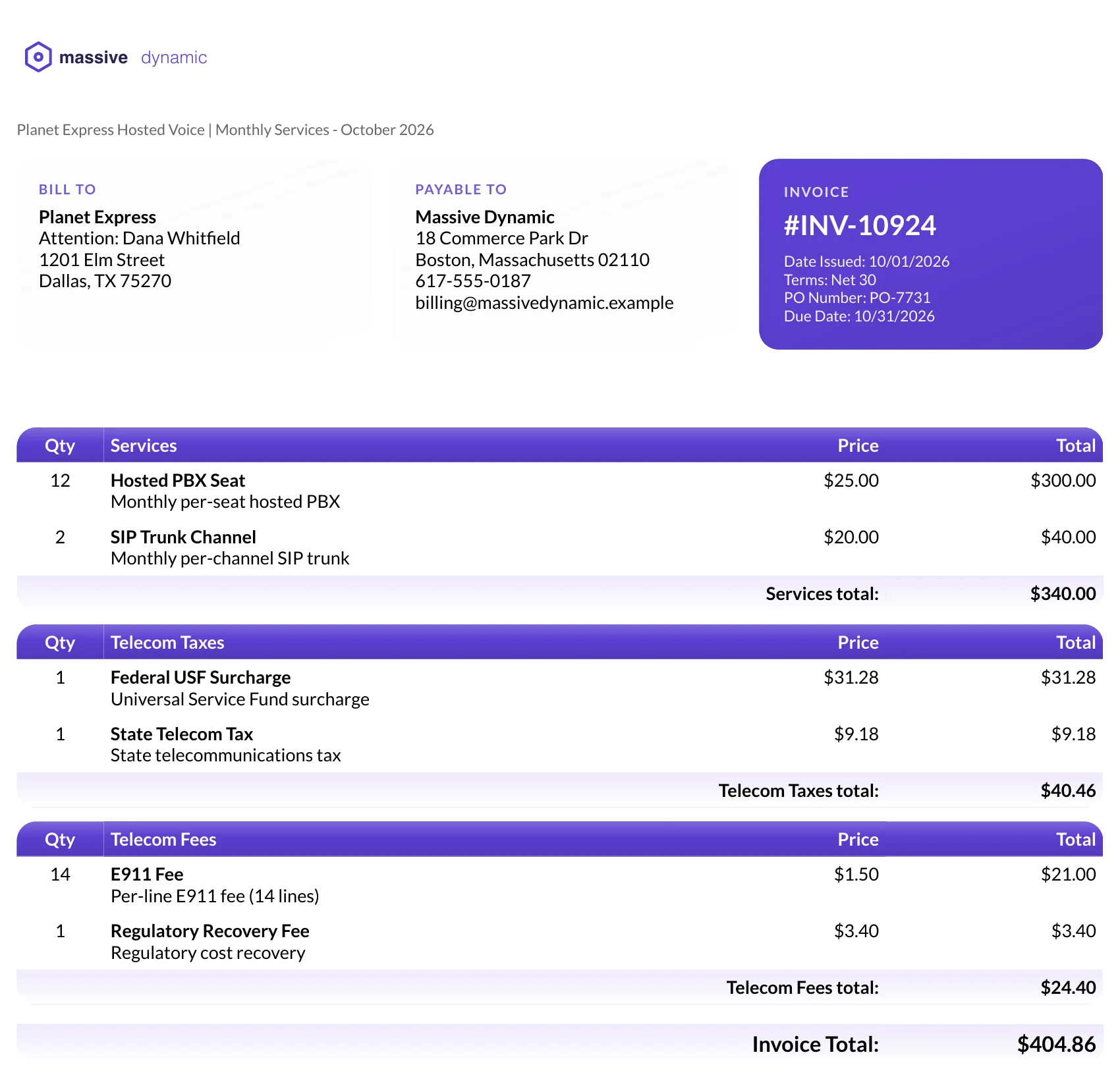
Things to Be Straight About
- It’s presentation, not tax compliance. ConnectWise still treats these as product revenue. They won’t show up in its tax reports, and calculating the right amounts and remitting them stays whatever process you use today.
- The totals have to tie. Because the sections are built from the same lines ConnectWise already invoiced, the grand total is always the ConnectWise total. Test with an invoice that has credits and prorated lines too.
- Someone has to keep the labels right. A new fee added to the catalog without a subcategory or section value will land in the Services block. A good template puts anything unlabeled somewhere visible instead of hiding it.
- Report Writer can do some of this, but not all of it. Grouping by a field is within reach. Section subtotals, per-section hiding and sorting get awkward fast. We can sort this out fast and get the presentation exactly how you need it with a NexNow-Hosted Invoice Template.
The Other Option: Let Your Billing Platform Make the Invoice
If a telecom billing platform such as Rev.io already rates your usage and calculates the taxes, rebuilding that invoice in ConnectWise may not be necessary. Its invoice already shows the usage, taxes and fees you need, so the simpler fix is to hand it to your customers directly. We can host a small redirect for this: when someone prints or opens the invoice in ConnectWise, the PDF comes from the billing platform instead. See Rev.io invoices in ConnectWise for how it works on the Rev.io platform.
If you have questions about telecom billing in ConnectWise, the ConnectWise subreddit and the ConnectWise University Forums are good places to compare notes.
Want Telecom Fees on Your Invoices?
If you’d like your telephony charges laid out like a phone bill, see how NexNow hosted invoice templates work, or book a demo and we’ll show you a sectioned invoice built on your own catalog.