Setting Up Your Public/Private API keys in ConnectWise Manage
Updated for 2026: see How to Create a ConnectWise API Member for Custom Invoices for the current steps, including the exact security role permissions custom invoices need.
Essential to every integration is the public/private ConnectWise API key creation within the Member setup area of ConnectWise Manage. When you are asked to set up your public and private keys for an integration, these are the steps to take:
Open ConnectWise PSA and log in with an account that has access to the Members Screen:
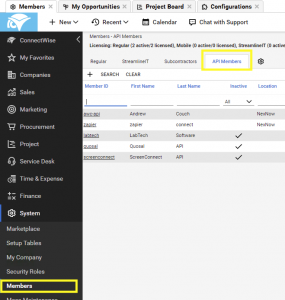
Go to API Members and click + to create a new member. Then, you will need to include several details:
- Member ID
- First Name, Last Name
- Security Role ID (we recommend you use a security role with the least access for this)
- Security Level, Name
- System Defaults for Owner ID, Default Location, Department
- Default Sales Territory
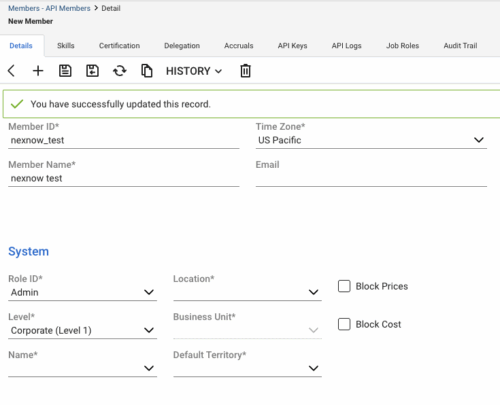
After you click Save, the API Keys tab is selectable. Click + to add a new one then enter a description and click Save.
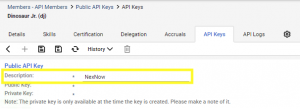
Once saved, the Public Key and Private Key will generate. Keep the private ConnectWise API key safe in your password manager or other secure location as it will not be visible again after closing this window.